· Updated · 3 min read
How to Film Yourself Running with an iPhone
Five ways to film your own runs on an iPhone, the settings for each, and how to put pace, distance and heart rate on the video.
Running is awkward to film alone. The subject is moving away from the camera at speed, and the camera is usually also the thing in your pocket. There are five setups that work, each with a different look and a different amount of faff. Pick one or two per run rather than trying all of them: the run still has to happen.
1. Tripod pass-by
Set the phone on a small tripod beside the path, hit record, jog back twenty or thirty metres, and run past it. It is the cleanest-looking running shot you can get alone, and the only one that shows your whole stride.
- Place the phone low, knee to hip height, and angled along the path so you run toward and past it rather than straight across.
- Lock focus and exposure on the point where you'll pass the camera.
- Record at 60 fps so the pass can be slowed down.
- Choose a quiet stretch where you can see the phone the whole time. Don't leave it out of sight.
2. Handheld, facing you or facing forward
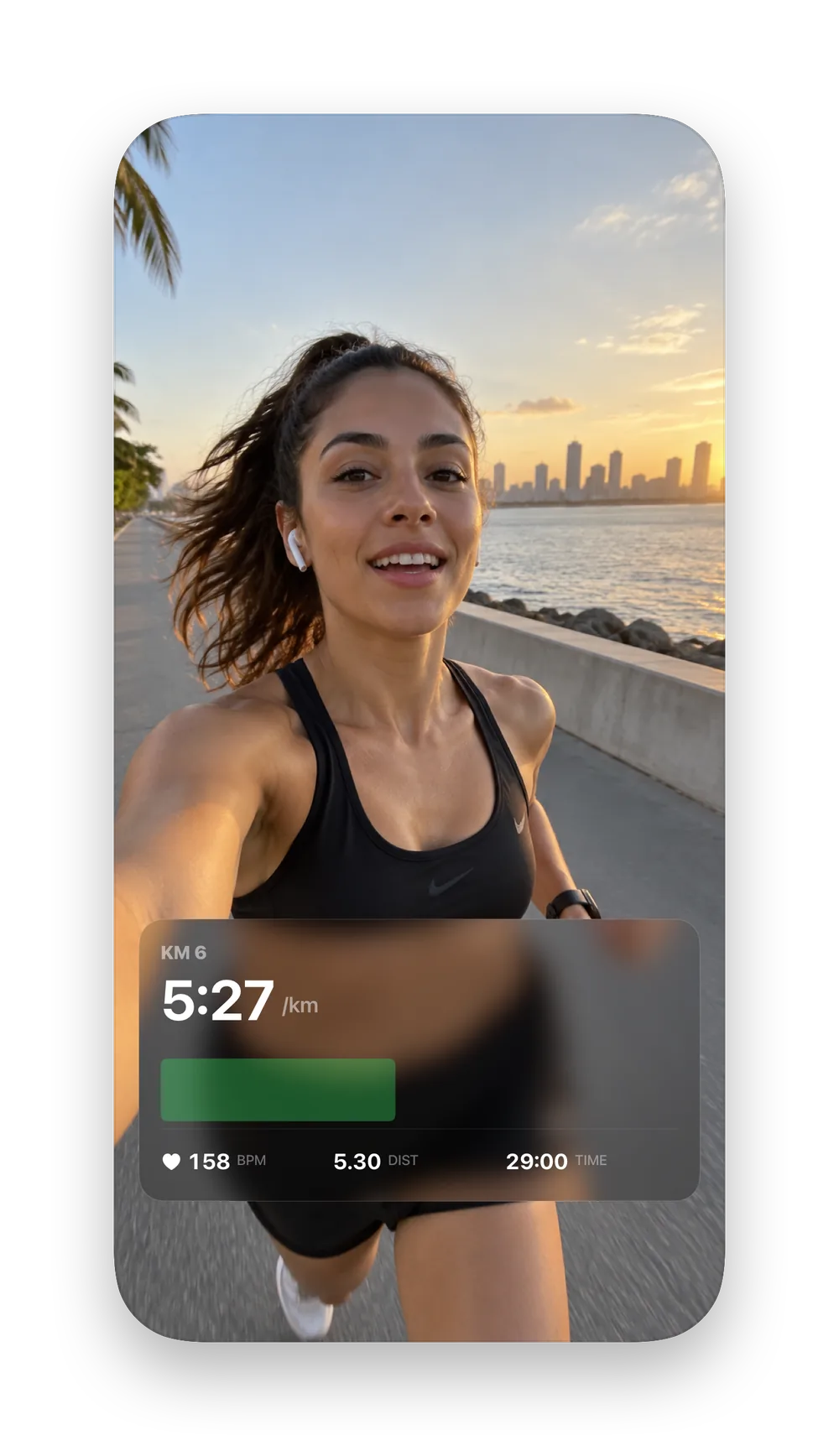
The fastest option: hold the phone at arm's length. Facing you, it gives the talking-while-running shot; facing forward, it gives the runner's-eye view of the route. Turn on Action mode if your iPhone has it (iPhone 14 and later). It removes most of the bounce. Keep these clips short. Ten seconds of handheld is plenty, and you should only do it where the footing is predictable and you can keep your eyes up.
3. Chest or belt mount
A chest harness or a running belt with a phone clamp gives hands-free point-of-view footage for as long as you like. It bounces more than handheld, so stabilisation matters, and the ultra-wide lens helps hide the movement. Good for trails and races where you want the atmosphere without carrying the phone in your hand.
4. A friend on a bike
If someone can ride alongside or ahead of you, you get tracking shots that look professionally filmed. The rider holds the phone or mounts it to the bars, uses the 1x lens, and keeps a steady gap. This is the setup behind most of the smooth side-on running footage you see online.
5. Treadmill
The easiest of all: the runner stays in one place. Put the tripod at 45° from the front for a general shot, or directly side-on at hip height if you want to look at your form. Side-on at 60 fps is how coaches film gait: foot strike, knee drive and posture are all readable.
Settings for running footage
- 60 fps for anything you might slow down; 30 fps for talking clips and long point-of-view sections.
- Action mode for handheld and mounted shots in daylight. It needs light, so expect it to struggle at dusk.
- Shoot vertically if the clip is going to Reels, TikTok or Shorts.
- Run with the sun to one side or behind the camera. Early morning and late afternoon give the best light and the fewest people.
Put pace, distance and heart rate on the video
Running footage on its own shows that you ran. The numbers show how: the pace you held, the heart rate it cost, the distance covered. There are two ways to get them onto the video with FitCam.
- Live: record in FitCam with an Apple Watch workout running, and pace, distance, heart rate and zone are written onto the video as you film. Running overlays include a race dashboard with a mini-map, a per-kilometre split tracker and a running form overlay with stride length and ground contact time.
- Afterwards: film with the Camera app or an action camera, then import the clip into FitCam's video editor with the workout from Apple Health, or a GPX or FIT file from a Garmin or other device. Slide the data to line up with the footage and export.
The second route suits pass-by and bike-follow shots, where the phone doing the filming isn't on you. The first suits handheld and mounted shots, where it is.
Staying safe
- Film on paths and tracks, not roads with traffic.
- Look where you're going, not at the screen: frame the shot before you start moving.
- Keep a tripod where you can see it, and keep handheld clips to straight, clear sections.
Film your next run with pace, distance and heart rate on the video.
Download FitCam