January 5, 2026 · 5 min read
How to Film Your Workout with Heart Rate on Screen
A step-by-step guide to recording workout videos with live heart rate and fitness metrics visible on-screen using your iPhone and Apple Watch.
Fitness creators and athletes increasingly want to show their effort in a tangible way — not just sweat and heavy breathing, but the actual numbers. Heart rate overlaid on video is the gold standard for this. It lets viewers see exactly how hard you're working in real time.
What you need
- An iPhone (any model running iOS 16 or later)
- An Apple Watch paired to that iPhone
- FitCam installed from the App Store
That's it. No external heart rate monitors, chest straps, or extra hardware. Your Apple Watch measures your heart rate automatically during workouts — FitCam reads that data and shows it live on the camera.
Setting up before your workout
- Put on your Apple Watch and make sure it fits snugly against your wrist for accurate readings.
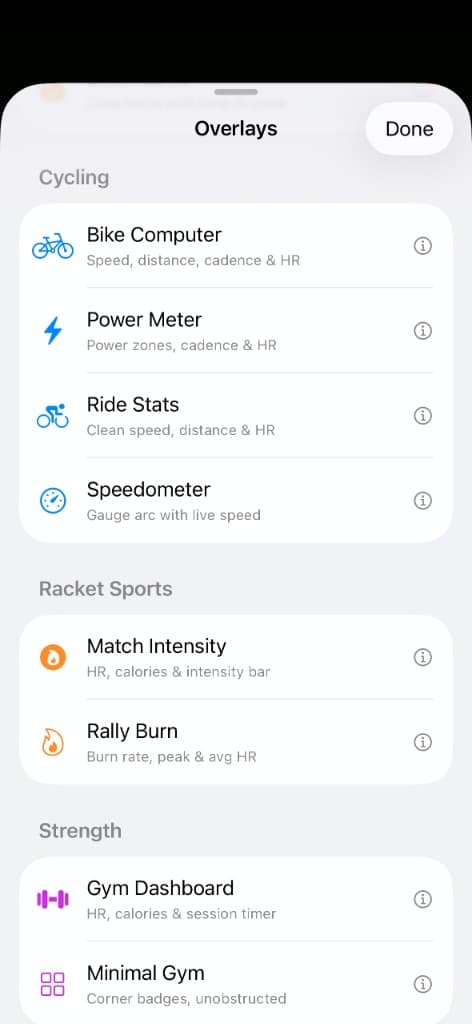
- Open FitCam on your iPhone and select an overlay that matches your workout type — there are presets for running, cycling, strength training, yoga, and more.
- Start a workout on your Apple Watch (from the Workout app or directly from FitCam's prompt). This activates the live workout session so heart rate updates every second.
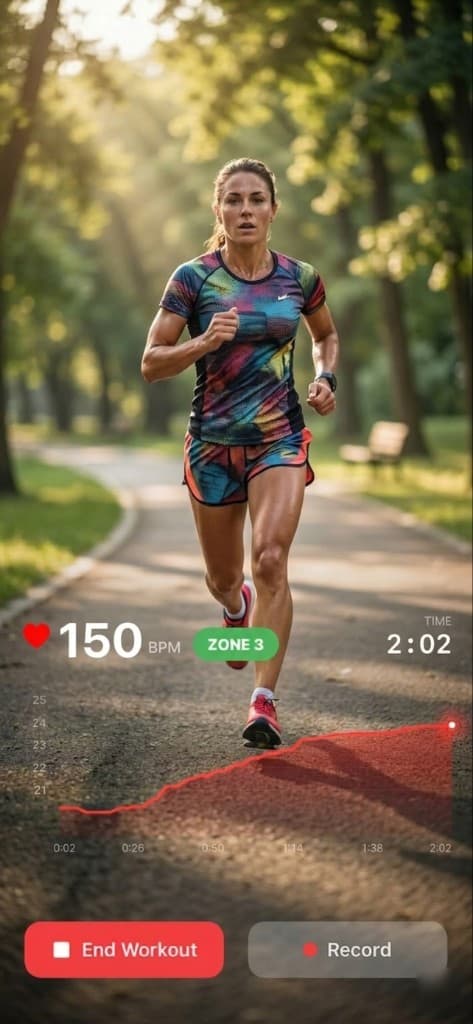
- Hit record in FitCam. Your heart rate, current heart rate zone, and other metrics appear on the camera preview — exactly as they'll appear in the recorded video.
Choosing the right overlay
FitCam offers over 20 overlay styles. For cardio sessions where heart rate is the key story, pick an overlay that gives the heart rate number prominent placement. For runs or cycles, add pace and distance too. For strength workouts, a minimal overlay with just heart rate and zone keeps things clean without cluttering the frame.
During recording
FitCam writes the metrics directly onto the video frames as you record, so there's no post-processing step needed. When you finish, the video in your Camera Roll already has all the overlays baked in. You can share directly to Instagram Reels, TikTok, or YouTube Shorts without touching a video editor.
Tips for great workout footage
- Prop your phone at a stable angle — a tripod or phone mount on gym equipment works well.
- Film in good lighting. Natural light or a ring light makes both you and the overlay numbers crisp and readable.
- Keep the overlay in a corner so it doesn't obscure your form.
- For outdoor runs or cycles, shoot in 1080p to conserve battery while still looking sharp on social media.
Ready to film your next workout with live heart rate on screen?
Download FitCam